Tweaking QuakeWorld
This article is going to cover several aspects of getting more from your fav. QW client. Whether you're looking to get a constant framerate, or just sick of headaches from low refresh rates, I hope you find something in this article that helps you.

  • Getting the latest drivers for your nVIDIA graphics card
    Sorry, this article does assume you're using an nVIDIA based graphics card, this includes anything from a Riva TNT up to a GeForce 6800. If you want to write me an ATi graphics driver supplement to this document, please e-mail me.
  • Squeezing more frames from your graphics card
    This includes settings you can change in your QW client, as well as driver tweaks to increase performance.
  • Its still not smooth enough
    Windows XP mouse acceleration problems? Refresh rate hurting your eyeS? QW client tweaks aswell as Windows fixes


nVIDIA Drivers
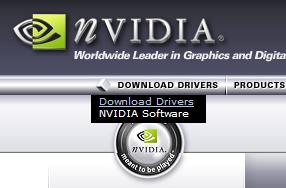
OK first we're gonna want to head to www.nvidia.com to grab the latest drivers.


The site is pretty well straight forward, follow the links...


Generally, you should just be able to install straight over the top of your old drivers without any problems. If you don't feel comfortable doing this, you should be able to uninstall the old ones from the Add/Remove Programs control panel applet - if you find that nVIDIA Drivers aren't listed, you may be using some really out of date drivers, in which case you can probably look forward to a huge performance boost. After installing the new drivers, you'll have to reboot. You will find that the drivers will have set your desktop resolution back to 800x600, so you'll probably want to change this back to your normal resolution before continuing :)

In case anyone was wondering, these drivers will support all of the following cards:
TNT2 / TNT2 M64
GeForce 2 / MX400
GeForce 4 / MX440
GeForce FX (All of them)


Getting more FPS
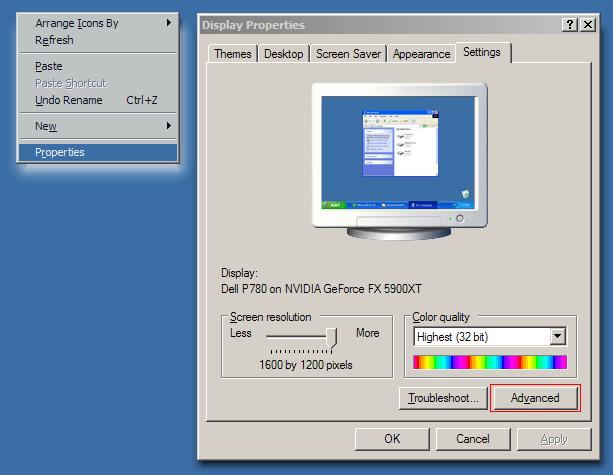
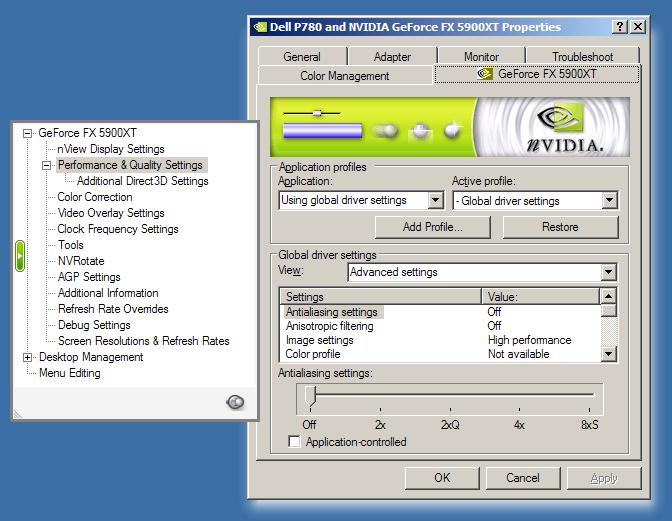
QW options aside, the best way to get more performance (and this includes all your games) is to tweak up your drivers. Follow the screenshots below to find the driver configuration page.


The menu on the left will slide out when you find this tab, mines called GeForce FX 5900XT because that's the card I have, yours will say GeForce 2 MX400 or similar. First tab we're gonna want to hit is Performance & Quality Settings. Ignore the Application profiles as we're just going to set all these settings globally (hence Using global driver settings). Now under Global driver settings, we're gonna want to change the View type dropdown box to Advanced settings. It's the top three settings that concern us at the moment. Untick Application-controlled and set both Antialiasing settings and Anisotropic filtering to Off.

Next ensure that the Image settings slider is set to High performance - note this can have some strange side affects depending on your graphics card. If you're desperate for frames, you won't probably won't give a shit, but if you're an eyecandy junky, then the odd discoloration of textures might annoy you. You really have to play with the slider to determine which settings are best for you. I use mine on High performance and I barely notice the artifacts.


Now the other way to increase performance, is to change your QW settings. The results from this can vary drastically, it can also depend on which QW client you will be using. I'm going to be focusing on EZQuake and FuhQuake - as these are the two most common clients in use today.
cvar value result
cl_deadbodyFilter 2 A great way of cleaning up all the carcuses laying around the map, as these chew fps
cl_gibFilter 1 Turns off gibs
cl_hidenails 1 Exactly what it says
cl_hiderockets 1 Exactly what is says
cl_maxfps 999 value sets an fps cap, more on this later
cl_trueLightning 1 Stop that dragging headache
gl_detail 0 adds a rough surface to all textures at the cost of frames
r_drawflame 0 turns off burning flames
r_explosionLight 0 lights up the map upon explosions
r_explosionType 4 low res non-fancy explosion for grens/rockets
r_grenadeTrail 2 low res non-fancy gren trails
r_lightflicker 0 turns off flickering lights
r_powerupGlow 0 gets rid of the blue quad glow from pov
r_rocketLight 0 ...
r_rocketTrail 0 no rocket trails
gl_part_blood 0 blood
gl_part_explosions 0 turns off particle fx for explosions
gl_part_telesplash 0 turns off fancy fx for teleporters
r_dynamic 0 dynamic lighting
r_fullbright 1 ...
r_lightmap 0 turn off lit maps
r_shadows 0 turns off shadows
gl_caustics 0 turns off fancy underwater effects
r_fastsky 1 turns the sky one color (also r_skycolor)
r_fastturb 1 this is an ezquake only setting if you're super desperate for frames
gl_picmip 5 blurs all textures
gl_playermip 5 blurs all player models
gl_texturemode GL_NEAREST changes the way the renderer handles textures and distances

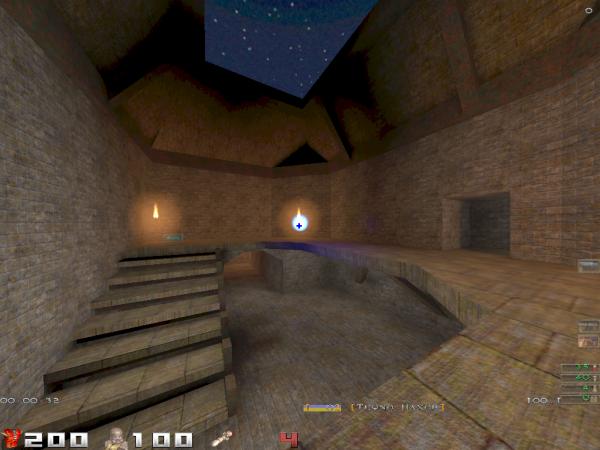
The most drastic cvars for frame hungry players are gl_picmip and gl_playermip which will use super lazy mipmapping for all textures and models. Additionally, gl_texturemode changes the way the OpenGL renderer handles distances and textures, if you commonly play wide open maps (like TF) then this probably isn't such a good idea as it drastically reduces distance visibility. The last one is for people trying to play QW on sub 500MHz PCs, and it requires EZQuake (ezquake.sf.net). r_drawflat is demonstrated by the screenshot below.


If you're looking for a simple CFG file with all of these settings, I suggest you try NickStar's QuakeWorld config, I've tweaked it up in EZQuake and used cfg_save to print this file. You can download it here.

Make my Quake smoooth
Well now that FPS shouldn't be a problem, we can work on matching up your resolution, refresh rate, and also setting up vertical sync - the proper way. Further down we'll also cover tweaking your Windows USB mouse drivers, and setting your m_rate correctly. Before we begin, I just want to say that I take no liability if you somehow manage to screw up your Windows installation, which I very mouch doubt you will if you follow the instructions.

At this point, it would help if you decided on one resolution to play Quake in, I personally use 1024x768 however you may want to use a lower resolution for a higher refresh rate, depending on your fps and what your monitor supports :) Now we need to find out which refresh rate your monitor will support this resolution at. This is simply a case of trial and error with your Desktop properties. If your monitor supports DPMS (and there's a good chance it does) then Windows XP should have already determined what resolutions and refresh rates your display is capable of - let's just double check before we go any further.


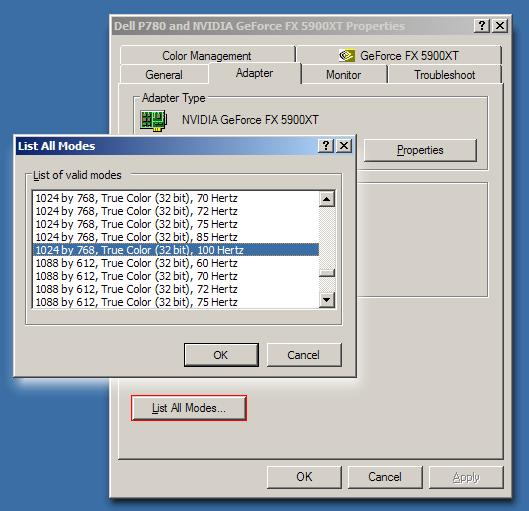
Right click your Desktop and go to Properties, click on the Settings tab and hit Advanced, now select the Adapter tab and you should be presented with a screen similar to the above. Click on the List All Modes button and scroll up (or down :) to the resolution you play Quake in. Start with the highest refresh rate (probably 85Hz for standard 17" CRT monitors) and click OK. Now press Apply.

Windows will now attempt the resolution and refresh rate on your desktop, if after flickering your monitor displays an Out of Range error or similar, simply press the N key on your keyboard, or wait 15 seconds and Windows should automatically change back to your previous resolution and refresh rate. If you like, you may wish to determine which refresh rates your monitor supports in all common resolutions so we can set these for other games later aswell. For example (640x480 = 120Hz, 800x600 = 100Hz, 1024x768 = 85Hz, 1280x1024=60Hz).

A note on LCD monitors.
Most LCD monitors have a native resolution at which they are designed to run, this is typically the highest resolution the display will support. For 17" monitors, this will be 1280x1024 at a maximum of 60Hz. For lower resolutions, your monitor should support 75Hz, but not higher. Note that running the monitor in a resolution below the native one, will result in stretching of the picture. Most people have trouble seeing the difference in games, so for the extra 15Hz it may be worth running your game in a resolution lower than the native one.


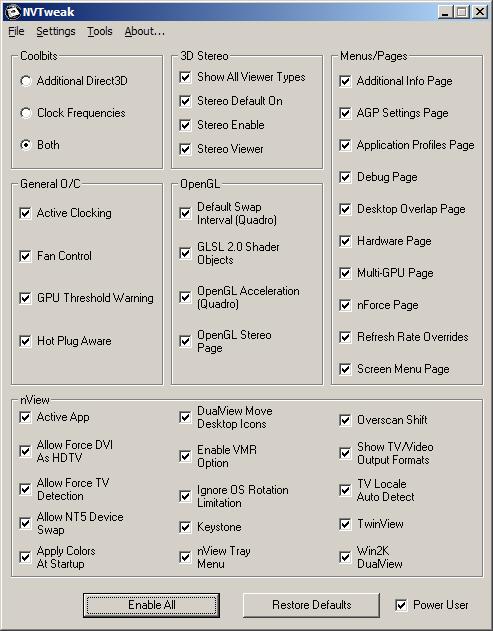
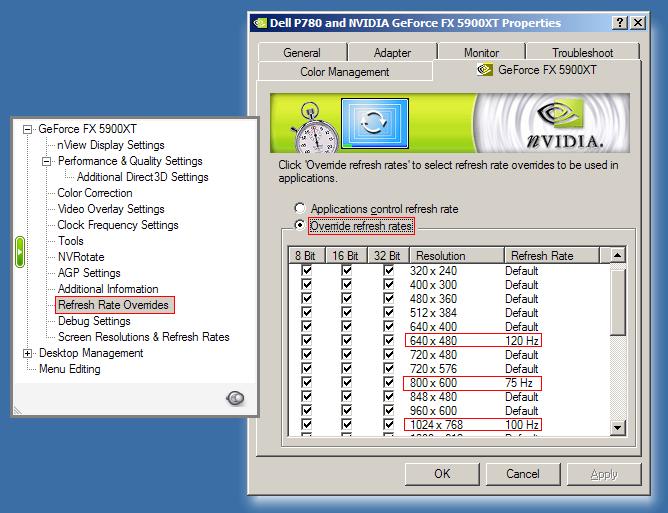
Now we need a little program which will enable all the hidden menus within the nVIDIA driver properties. Including clock frequency settings, aswell as Refresh Rate overrides for full screen resolutions. Contrary to popular belief, setting the refresh rate in the List All Modes box will not change your refresh rate in fullscreen games. For years, drivers have defaulted to 60Hz in fullscreen mode, regardless of Windows' desktop settings. NVTweak is the program we need to do this. You can cut straight to the download link for the latest version (at time of writing) here. This is relatively straight forward to install, launch the program from the Start Menu and you should be presented with a dialog like this.


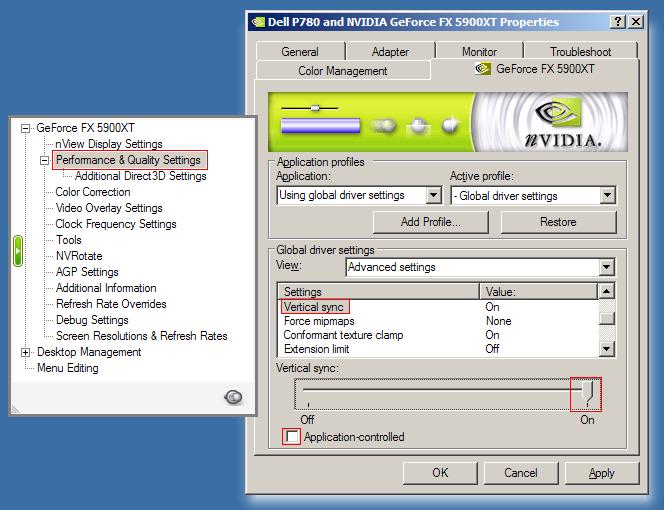
Make sure Power User is ticked and then hit Enable All, then close the program. Now we should have a lot of extra menus within our nVIDIA driver properties. The first thing we want to do, is Enable vertical sync. This will ensure that our framerate will match our refresh rate (this is important to prevent screen tearing). Many people will tell you that you'll get more FPS by turning it off, this is technically true - however if your graphics card is producing 200 FPS and your monitor is refresh 60 times per second (60Hz) then you're only going to see 60 of the 200 frames.


Here we can see, under Performance & Quality Settings, scroll down the Global driver settings until you reach Vertical sync, untick Application-controlled and change the slider bar to On. Next we're going down to Refresh Rate Overrides. As you can see below, this is simply a matter of selecting Override refresh rates and then selecting our desired Refresh from the dropdown boxes which appear when clicking on Default for any resolution. I've set my Quake resolution of 1024x768 to 100Hz, as well as some other resolutions to different refresh rates for other games.


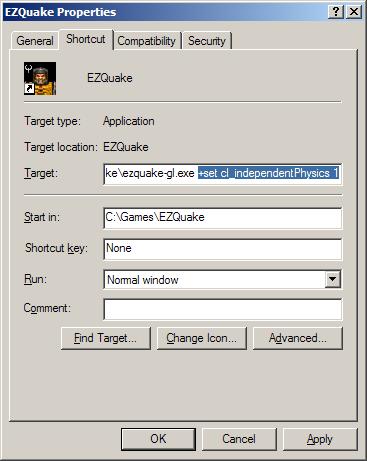
Depending on your selected resolution and refresh rate, the next step may or may not be neccessary. QuakeWorld is hardcoded to max out at 72 Frames Per Second, thanks to recent mods such as KTeams Pro this limit is increased to 77. If you've selected to run 75Hz on your monitor with 75 FPS, then this next step probably won't affect you at all. If you intend to run above 75Hz then we need to seperate the QuakeWorld netcode from the physics animation. To do this, you must be using a client that supports Independent Physics, such as EZQuake or ZQuake. To enable this, we're going to add +set cl_independentPhysics 1 to the command line.


Now we should be get any framerate we want, however because vertical sync is enabled, we will be peaking at whatever our refresh rate is set to (which is exactly what we want). We need to set the following cvars to ensure QW does exactly what it's told at all times.

cvar value result
cl_maxfps 999 this will ensure QW does not try to place any cap on our framerate
vid_vsync 1 this tells quake we're using vertical sync
m_filter 0 we no longer to smooth our mouse over the last two frames as we have a set framerate
show_fps 1 shows our current framerate

If all went well, you should be sitting at a constant framerate matched to your refresh rate with no screen tearing. My Quake runs happily at 100.1fps with my monitor at 100Hz with no framerate drops. If your framerate is dropping, you may need to considering lowering refresh rate or changing your detail settings (see the above section for increasing your FPS).


Next we're going to get rid of Windows' pesky pointer acceleration. Unticking Enhance pointer precision in our Mouse properties in Control Panel unfortunately doesn't do the trick, this is because Windows uses DirectX to handle mouse input in fullscreen applications. There's three ways to get around this, depending on your Quake mousing preferences. The first and most simple way is to add -dinput on to your QW command line, which most of you are probably already using.

Some people don't like the feel of DirectInput and prefer the Windows 98 style cursor movement, in which case we're going to add these three options to our command line: -noforcemaccel -noforcemparms -noforcemspd. Note that using -dinput will override these settings anyway.

The third and most permanent solution, which will apply to all your games, is to change Windows' acceleration values which are stored in the system registry. Seeing as most people don't like playing with their registry, I have created a small .reg file you can download and run to automatically change the settings for you. You can grab the fix file here, and if you want to reverse the patch, run the original settings here. After this, you need not run any of the above command line parameters to remove pointer acceleration, however you may want to use -dinput anyway for the faster mousing inputs.

Speaking of mouse input, brings us to the final part of this guide. For those of you using PS/2 Mice, you'll need a program called PS/2 Rate, available here. This program allows you to increase your mouse rate in real time, beware though as sometimes this can have all kinds of strange side affects.

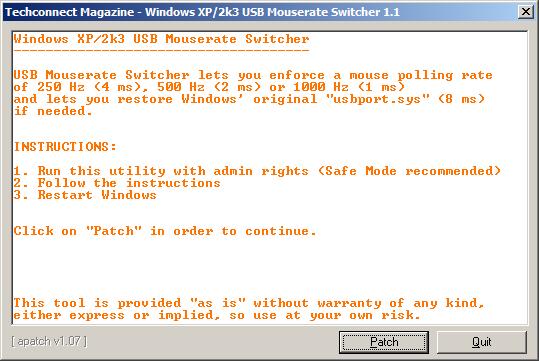
For those of us living in the 21st Century, we're using USB mice. Windows' USB drivers suck, and that's a fact - so why don't we replace them with some faster ones? Grab this program here.


By default, the Windows USB drivers run at 8ms (125Hz), although if you've got a decent mouse bought within the past 3 years, chances are it can support much higher. See the table below for a rough guide of mouse rates supported by various popular mice.

manufacturer model rate
Logitech MX300/310 500Hz
Logitech MX500 500Hz
Logitech MX510 1000Hz
Logitech MX700/900 250Hz
Microsoft Optical 250Hz
Microsoft IntelliEye 500Hz
A4 Tech Optical 250Hz


If you have luck with higher mouse rates with your mouse than on the above table, or if your mouse isn't listed. Please e-mail me and I'll update the information. Results will vary depending on your mouse, and your motherboard. It's also important to have your motherboard chipset drivers up to date, that's a little outside the scope of this article, but you should be able to find plenty of information on Google. Note that will you have to reboot after every change, and make sure you read the README so you know what to do if something goes wrong.

Now, we're going to set our mouse rate in QW. To do this, we need to enable the cvar of m_rate, this can only be done from command line. We need to add -dinput and -m_smooth. Note that m_smooth won't work unless you have DirectInput enabled. m_rate sets your mouse rate (in Hz) for in game. Your default is probably 125 as this is the default of the Windows' USB drivers (aka 8ms). We're going to want to set this at the same value as your tweaked mouse rate, for example m_rate 1000. To see this in action, we can enable m_showrate, run around for a bit and check your console, you should see a whole lot of numbers running by identifying the current number of movement packets the engine is recieving. My MX510 with a tweaked rate of 1000Hz running at 100FPS manages to hit about 700.

Credits
Thanks for reading, I hope that you've gained something from this guide, and I hope that you've managed to get your QW running smoothly and at a constant frame rate. If everything didn't go as plan, go back to square one and try lowering some of your settings. I'd much rather play at 75Hz with 75FPS constant than play at 100Hz with between 80-100FPS. Thanks to Tonik for pointing out a few bugs - if you find any more in this guide or want to add anything, please contact me via any of the methods below:


www.teqnohaxor.com